Why I Built My Own WordPress Fleet Manager (and Made It Open Source)
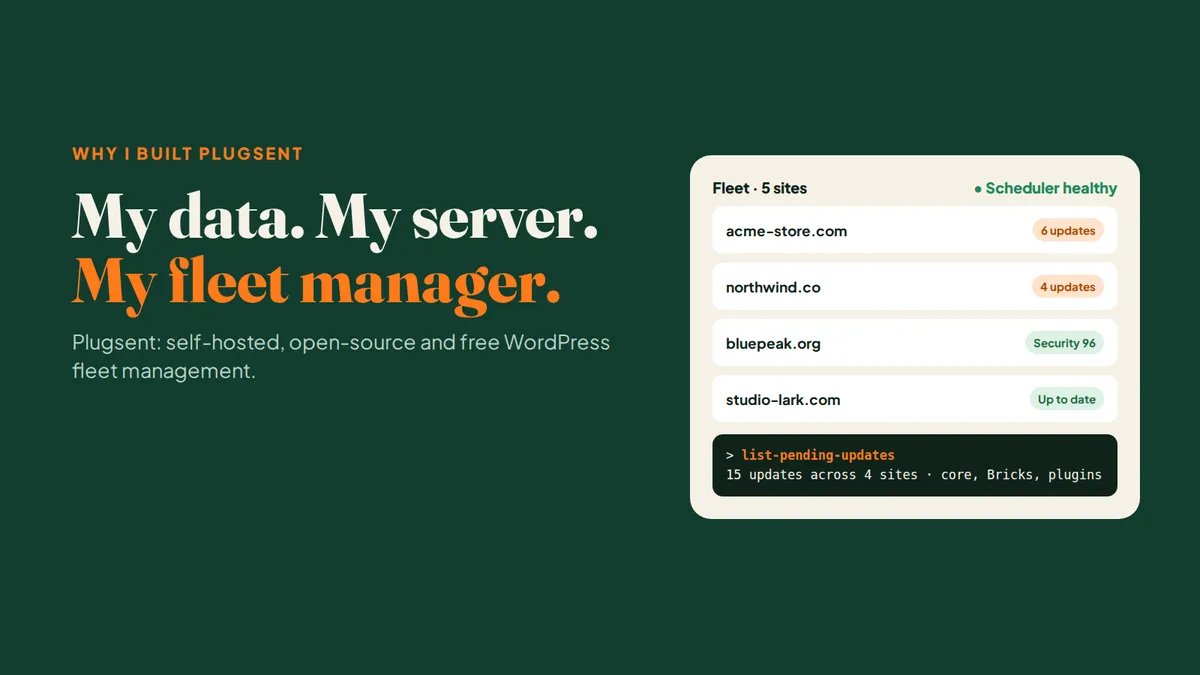
For years I ran WordPress client fleets the way most agencies do: a hosted dashboard, first ManageWP and later WP Umbrella, watching over updates, uptime and security.
They’re good products, and they shaped how I think about fleet management. This isn’t a post about what they got wrong. It’s about what I wanted that a hosted service, by design, can’t give me:
1. My data, on my server. Which sites I run, what’s installed on them, their vulnerabilities and update history: that’s the core of my business. I wanted it in my own database, on infrastructure I control, backed up the way I choose.
2. Everything runs on my own stack. My own SMTP for alerts and digests. My own MCP server so AI assistants can work with my fleet. My own fonts, my own domain, my own cron. No third-party service sits between me and my client sites.
3. Code anyone can read. Clients, the security-conscious ones especially, ask what the connector on their site actually does. I wanted to be able to answer by pointing at the source code.
4. Free for everyone, no strings. No accounts on someone else’s platform, no plans, no limits on how many sites you connect. If it’s useful to me, it should be useful to the next developer running a handful of client sites too.
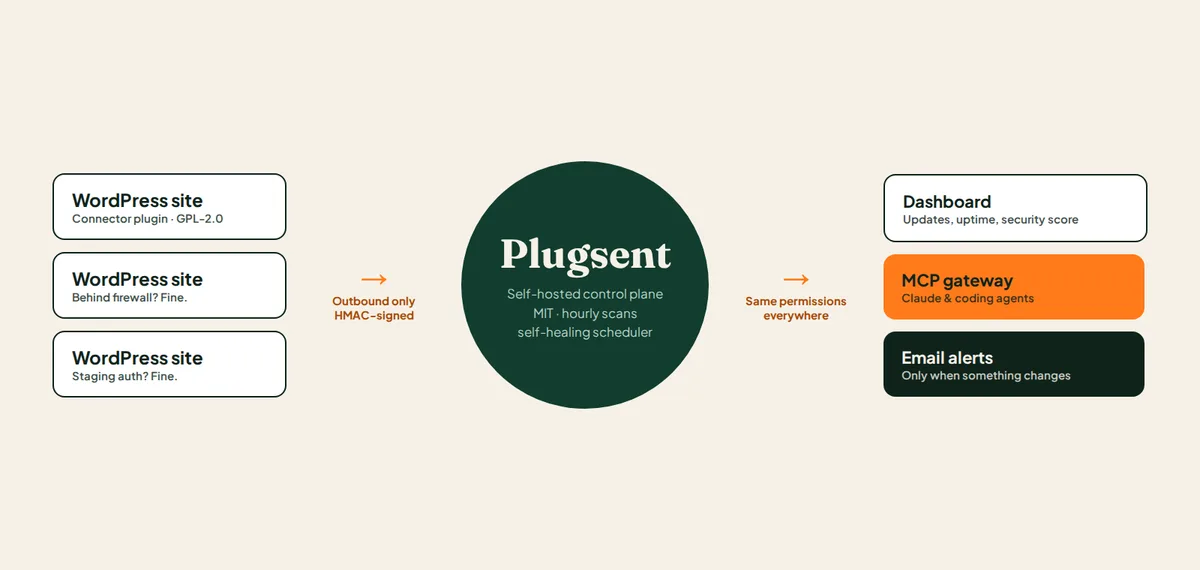
So I built my own. It’s called Plugsent: self-hosted, open source and free. It pairs with your sites over an outbound-only, HMAC-signed channel (no firewall holes, no stored admin passwords). The control plane is MIT-licensed, and the connector plugin is GPL-2.0, so anyone can read exactly what runs on a client’s site.
I moved my own client sites onto it and stopped using hosted dashboards. That’s when Plugsent taught me its first hard lesson.
The bug that started this release: “no updates pending”
Once my five client sites were running on Plugsent, I asked it a simple question one morning: are there any updates waiting? It answered: none, everything is up to date.
That wasn’t true. When I forced a fresh check, it found 15 updates waiting across four sites, including a WordPress core update, a Bricks theme update and several plugins I rely on.
Here’s what went wrong. Each site only reports what’s installed on it when Plugsent asks, and Plugsent was only asking when someone clicked “refresh”. So the dashboard kept showing the result of the last check. The moment a plugin author released a new version, that “up to date” was out of date, and nothing told me.
While fixing that, I found a second problem. The daily email that lists available updates had never reached anyone since launch. A small mistake in the database query meant it matched zero users, so it ran every morning and sent nothing. The tests passed, so nobody noticed.
Fixing both properly turned into the biggest Plugsent release so far.
The scheduler that installs itself
The real reason nothing was checking on a schedule: Plugsent’s background jobs (hourly scans, the daily email, the weekly vulnerability update) all rely on a cron job, and a fresh install didn’t set one up. I forgot to add it on my own server, and the app carried on looking healthy while doing none of that work.
Now Plugsent sets it up itself. Its scheduler records a heartbeat every minute. Whenever a connected site checks in, Plugsent looks at that heartbeat, and if the scheduler isn’t running, it adds the cron job on its own and logs that it did. There’s no setup step to forget. If you’d rather do it by hand, php artisan plugsent:ensure-scheduler does the same thing.
Hourly scans, so “up to date” means up to date
Plugsent now re-scans every connected site’s inventory once an hour, skipping sites with a scan already in flight. That’s the actual fix for the lying dashboard: the connector only collects inventory when asked — so now it’s asked on a schedule.
Emails that only fire when something changes
Hourly scans could easily mean hourly spam. They don’t, because the notification is edge-triggered: each site stores a fingerprint of its pending-update set, and the ”🆕 updates available on site” email only goes out when that set actually changes. New update? Email. Nothing changed? Silence. Site goes fully clean? The state resets, so the next new update emails you again.
While unifying the email system I also moved everything onto one branded template — uptime alerts, security alerts, update emails, password confirmations, workspace invitations — set in self-hosted Google Sans, with system-font fallbacks for clients that block web fonts. No more Laravel-default invitation emails.
Chat with your fleet over MCP
Plugsent speaks MCP (laravel/mcp, streamable HTTP), so chat clients and coding agents can work your fleet directly, through the same permissions as the dashboard:
- list-sites — the fleet at a glance: scores, uptime, pending updates, vulnerabilities
- get-site-status — the full report for one site, failing security checks included
- list-pending-updates — exactly what’s outdated, exclusions respected
- update-site — queue plugin/theme/core updates through the safe-update pipeline
- rescan-inventory — trigger a fresh scan for one site or the whole fleet
Setup is a token from My account → MCP access plus three lines of client config:
{
  "mcpServers": {
    "plugsent": {
      "url": "https://your-plugsent.example.com/mcp/plugsent",
      "headers": { "Authorization": "Bearer <your-token>" }
    }
  }
}
Then, from your terminal: “check all my sites for updates and update SEOPress on the client blog.” Every tool call runs through the same workspace and project policies the UI uses — a member’s token can’t touch a lead-only site.
Everything Plugsent does today
The complete tour, grouped by what you’d actually do with it:
Connect & organize
- One-click pairing — generate a 15-minute code in the dashboard, paste it into the connector plugin, done. No admin passwords stored, ever.
- Outbound-only connector protocol — HMAC-SHA256 signed requests, timestamp tolerance, nonce replay protection, instant revocation, 120 req/min throttling. Sites behind firewalls and staging auth just work.
- Workspaces & teams — every signup gets an isolated workspace with slug URLs; email invitations with one-step joins; workspace and per-project roles.
- Projects & sites — group client sites into projects with workspace-scoped authorization on every read and write.
Update with confidence
- Safe updates — the full pipeline: files + streamed database restore point → update → smoke test → automatic rollback if the site stops answering. Core updates stay plain.
- Plugin/theme management — activate, deactivate, delete, switch themes, per-item “exclude from updates,” and a manual restore for updates that “succeed” but misbehave.
- Capability-aware UI — old connectors simply don’t show buttons they can’t execute.
- One-click admin login — single-use magic login into wp-admin from the site page.
Monitor
- Uptime monitoring — checks every 5 minutes, incidents after two consecutive failures, 🔴/🟢 email alerts, pause/resume per site.
- Domain & SSL expiry — domain expiry via RDAP, SSL expiry read from the served certificate, cached daily.
- 30-day uptime analytics — uptime-rate percentage with per-day bars and an incident timeline.
- Fleet dashboard — a workspace-wide security-score ring, KPI cards with 14-day trend sparklines and week-over-week deltas, a “needs attention” table that ranks the worst sites with reasons, and a fleet-wide activity feed.
Secure
- Security score — 14 health checks (WP_DEBUG, SSL, WP/PHP support, inactive and vulnerable software, hardening) rolled into a score out of 100, with one-click Fix actions.
- Hardening toggles — the connector enforces six protections on the site: hide WP version, block user enumeration, mask login errors, disable the file editor, security headers, disable XML-RPC.
- Vulnerability intelligence — a local mirror of the Wordfence Intelligence feed matched against every site’s inventory, with per-vulnerability detail popups (severity, CVSS, CVE, affected range, fix status, advice).
Stay informed
- “Updates detected” emails — edge-triggered, one per changed update set per site.
- Daily updates digest — once a morning, every site with pending updates and exact versions.
- Uptime & security alerts — site-down/site-recovered and vulnerability-growth alerts, throttled sensibly.
- Email preferences — every category has a per-user opt-out, respected by every sender.
Automate & integrate
- Self-healing scheduler — the app installs and repairs its own cron on connector check-ins.
- Hourly inventory refresh — the fleet’s data stays honest without anyone pressing refresh.
- MCP gateway — five policy-scoped tools for chat clients and coding agents.
- REST API — the connector protocol is a versioned, signed API; a public dashboard API is next on the roadmap.
Administer
- My account — profile, password changes (signs out other sessions), TOTP two-factor login with eight recovery codes.
- Settings UI — SMTP with a test send, vulnerability feed sync with cooldown; values override
.env. - Self-hosted by design — SQLite out of the box (PostgreSQL via Docker), self-hosted fonts, no third-party SaaS dependency. MIT control plane, GPL-2.0 connector, 120 tests covering the protocol, pipeline, permissions, and self-healing.
What’s next
Next up on the roadmap: PageSpeed monitoring, broken-link checking, backups, malware scanning, and custom alerting rules. A public REST API for the dashboard follows the connector protocol’s lead.
Try it: Plugsent is open source at github.com/ashawkat/plugsent. Star it, clone it, sign up, pair a site (there’s a connector simulator if you don’t have WordPress handy), and connect your chat client over MCP. If you run WordPress fleets for a living, I’d genuinely love to hear what’s missing. Open an issue or drop me a line.